 Khana Khazanaa
QR ordering for restaurants
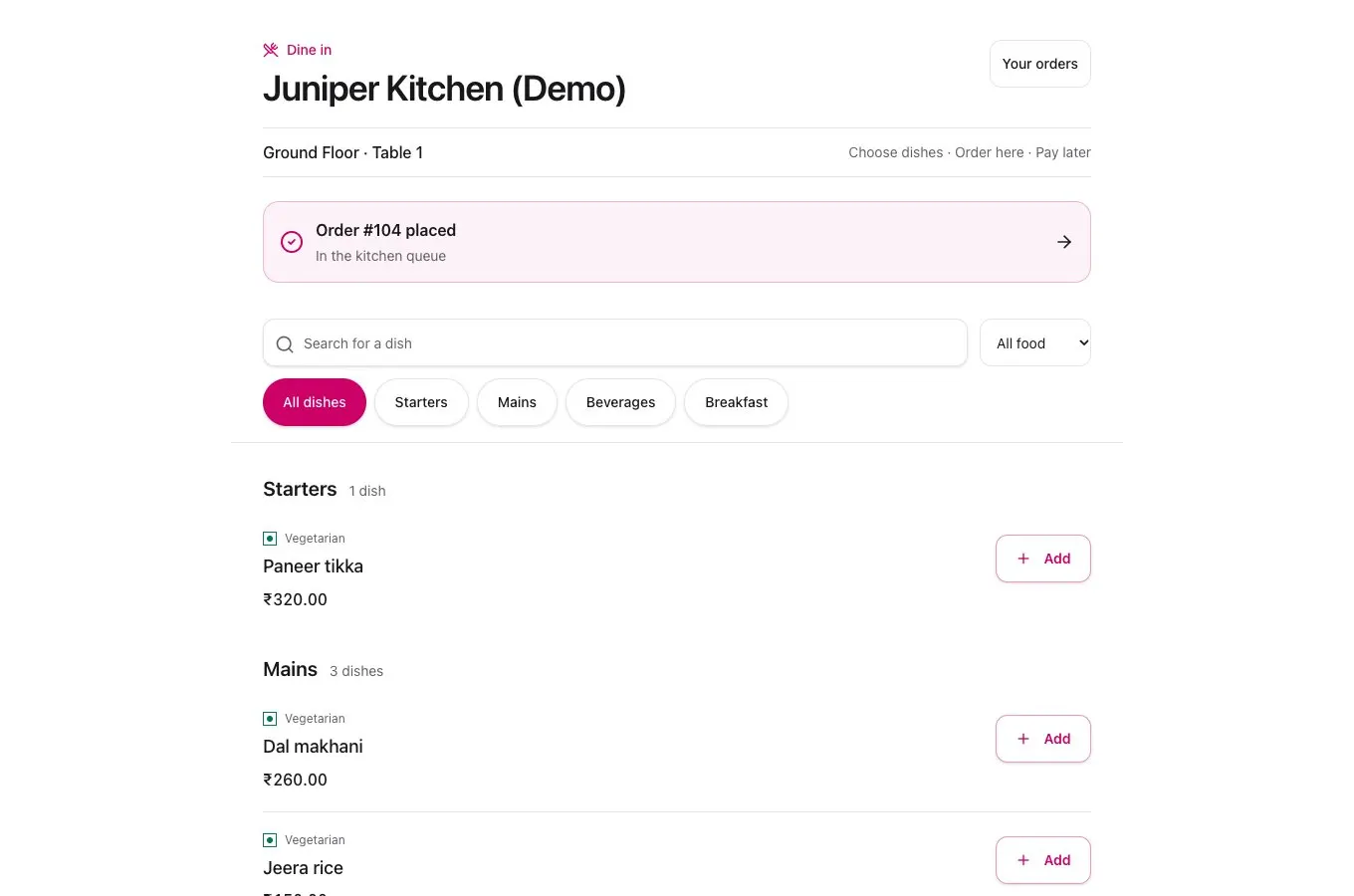
Guests scan the QR code at their table, browse the menu and place an order from their phone. Khana Khazanaa sends accepted orders to the kitchen and adds them to the table bill for staff to settle.
From the table QR to the kitchen
Set up the tables
Create codes for the tables you want to use in a supported restaurant or café. Follow the table QR setup guide to print and test the codes before service.
Let guests order
Guests choose dishes, quantities and available add-ons. When ordering is enabled, accepted orders reach the kitchen as kitchen order tickets. Guests can see progress and add another round.
Settle one table bill
Guests at the same table can order from separate phones. Staff review the shared bill and record the payment in the billing workspace.
Choose per table
- Menu only
- Browse
- Review first
- Staff approve
- Direct to kitchen
- Send orders
Start with the mode that suits how your team takes orders.
Table QR ordering questions
Do guests need to download an app?
Guests open the table link in their phone browser. In direct ordering mode, they can place an order without creating an account.
Can QR orders print a kitchen ticket?
Yes. Configure compatible connected printers and keep the signed-in printing device open for automatic KOTs. You can also use the kitchen display.
Where does the guest pay?
In the table QR workflow, staff or the counter collect payment. Guests can request the bill from their phone.