 Khana Khazanaa
How to set up scan-to-order table QR codes
In the Khana Khazanaa Owner workspace, create a QR code for each table, pick an ordering mode and enable ordering for your outlet. Test one table from a guest’s phone through to the kitchen and the staff bill before putting codes on every table.
Published
Set up one table first
Start with a supported restaurant or café dine-in setup, an existing table and a menu ready for guests.
Create the table code
Sign in as the owner, open QR ordering, select a table and choose Create selected QRs. New codes start in menu-only mode.
Choose how guests order
Set the table to Review for staff approval or Direct to kitchen to send accepted orders without an approval step. Keep Menu only where staff should take the order.
Set up kitchen delivery
In QR ordering settings, choose kitchen display, display with automatic print, or paper delivery as appropriate. For automatic printing, connect compatible printers and keep the signed-in receiving device open. Review ordering hours, the order value limit and the QR tax rate, then enable ordering.
Print and attach the code
Preview the link and export a Sticker PDF or Table tent PDF. Print at 100% actual size and keep the white border. Scan the printed code at the table and check the restaurant, floor and table label.
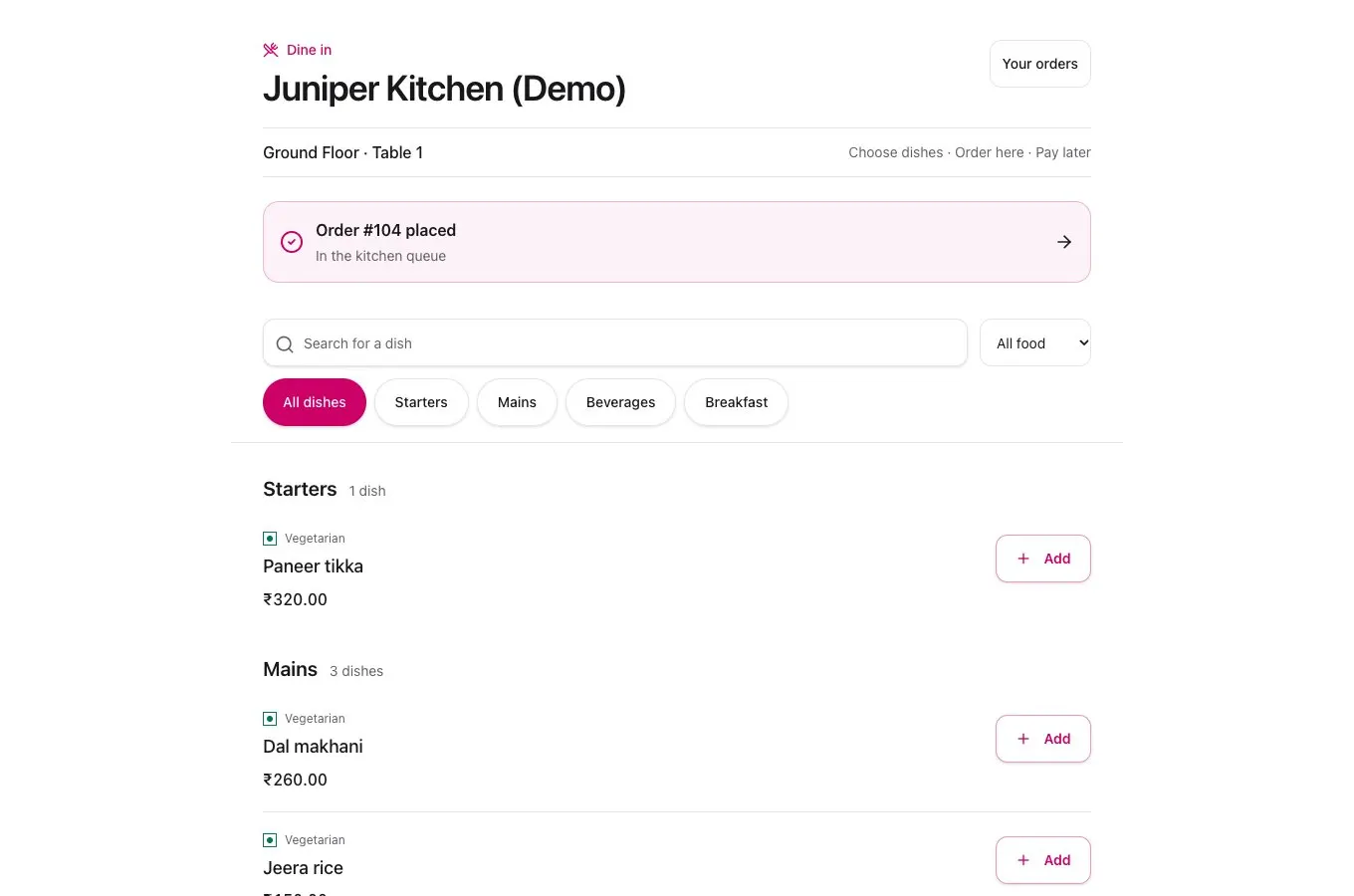
Run a test before opening it to guests
Check the guest view
- Scan the printed code with a phone that’s signed out of the restaurant app.
- Check the table label, available dishes, prices and any add-ons.
- In review or direct mode, place an approved test order in a demo outlet or designated test table.
Check the kitchen
- In review mode, have staff approve the test order.
- Confirm it reaches the kitchen display or the right paper station.
- Send a second round and check that the kitchen receives the added items.
Check the bill
- Place another test order from a second phone using the same table code. Verify both orders appear on the shared table bill.
- Test the guest’s bill request and check that staff can review the bill.
- Walk through staff or counter settlement before enabling more tables.
If the test doesn’t go as expected
The menu opens with no order button
Check that the table is in an ordering mode, outlet ordering is enabled and the current time is within any configured ordering hours.
The order is accepted but the printer is silent
Check QR ordering’s Live activity and the kitchen display. Confirm the receiving device is signed in, the printer is connected and the station has paper. Check for a printed slip before retrying.
The code opens the wrong table
Remove the misplaced sign and print the code for the correct table. If you replace a QR link in the app, print and verify the new code before putting it out.